


A product that raised 300 million yen through crowdfunding. Is its “power” real?
Nape Pro, a collaboration product between GIZMODO Japan and Keychron, is a very popular product that raised 300 million yen in its initial offering on CoSTORY.
This review is of a prototype before mass production.
While the hardware is almost complete, the software is in the adjustment stage.
For this reason, this article will not provide a rating for this prototype, but will limit itself to a hardware check and a report centered on photographs.
We will verify if the popularity does not end only with the numbers – from the feel of the actual equipment.
Summary of this article
- The preceding review of the Nape Pro (prototype) is limited to hardware. Software/firmware evaluation will be conducted in a separate article.
- What we were able to confirm from the photos and actual measurements were “areas that are unlikely to change later,” such as size, weight, and ball diameter.
- Almost the same as the commercial version in terms of packaging, technical specifications, etc.
- Good handling feel and fine pointing even with a small trackball
- Keymap changes can be made via wired connection or 2.4GHz dongle connection (wireless)
- LED indicators glow in corresponding colors when switching on, charging, or changing directions
- Users need to be creative in their use of the system.

Nape Pro Specifications

Main unit size and weight
Package dimensions (main unit)
- Total length: 135mm
- Width: 35.4mm
- Height: 36.73mm
Measured dimensions (main unit)
- Measured total length: approx. 136mm
- Measured width: approx. 36mm
- Height to top surface: approx. 20mm
- Height to scroll ring: approx. 33mm
- Height to ball top: approx. 42mm
- Total weight of main unit: approx. 83g
- Ball weight: approx. 10g
- Body weight excluding ball (calculated): approx. 73g
Measured dimensions (around trackball)
- Ball diameter: approx. 25mm
- Ball removal: Push up from the bottom hole with a stick
- Bottom extrusion hole Diameter: approx. 4 mm (enough to accommodate a 3.5 mm dia. audio jack)
- Trackball support ball: Zirconia-based (under investigation)
Specification Details
- Chip: Realtek 8762GKU (*Described as “1K Hz Polling Rate (Realtek 8762GKU)” on the page)
- Sensor: Pixart PAW3222 sensor
- Battery capacity: 200mAh
- Continuous use time: approx. 50 hours
- Connection method: Bluetooth / 2.4GHz / USB Type-C (can be used while charging)
- Switch: Huano Silent Micro Switch
- LED indicators: glow in corresponding colors when switching on, charging, or changing directions
- Technical certification: Yes
Accessories (contents)
- body (of a machine)
- handling instructions
- Type-C to C cable
- Type-A conversion connector (male-female)
- dongle connector
- dongle
control system
- 6Customize button
- Programming Control Dial
- 8-way switching
- ZMK open source firmware-based
- Keymap change: Keychron Launcher (WEB browser support)
- Keymap change support Connection method: USB Type-C wired and wireless connection using 2.4GHz dongle
Sales Information
- Second CRAFAN deadline: March 31, 2026
Information reference: https: //costory.jp/cf-published-sku-groups/1451501608
Short review of the use of Nape Pro

Impression of accessories and cables
- The included USB cable is considerably softer than a typical braided cable and is easy to handle.
Impression of weight
- Although it is said to be heavier than the CES exhibit, the author’s impression is that it is “light.
- However, while weight helps portability, it is a difficult trade-off for stability.
Impression of ball diameter and operating feel
- Regarding the ball diameter of 25 mm, my impression is that this is the maximum size for index finger operation.
- Thumb operation might be okay up to 19mm.
- The larger the ball , the easier it is to move the pointer, but there may be a trade-off between ball size and feel of manipulation.
- The movement of the trackball itself is quite smooth, and the feeling of use is comparable to that of a model with the same mechanism that the author usually uses.
- Balls can be removed for cleaning.
- There are not many just right sticks in daily life that can be used for extrusion. In this case, we used a precision screwdriver + mastic tape.
- This point is quite troubling/I need a good stick.
Exterior and color impression
- The color is blackish, but not completely black, but a little grayish.
Placement and compatibility (sense of interference with keyboard)
- While there are many options for placement, I get the impression that many people are confused about how to use them.
- When placed in front of the space bar on the thin keyboard, the Nape Pro and thumb interfere with each other, making it difficult to press. Even in portrait orientation, the area that can be pressed is narrowed. Especially for Japanese layout, it may be difficult to operate because of the short space.
- (In one example of the foreground placement), thumb operation is required, but dragging is a bit difficult with one-hand thumb operation.
- When placed in the front or back, “two-handed operation” is the basic method.
Easy-to-use placement
- As a right-handed person, I found a good balance between horizontal placement and diagonal placement with the M key in the lower left corner.
- In that placement, all switches are accessible, do not interfere with the palm of the hand, and can be dragged without problems.
- I tried to see if I could turn the scroll ring with the belly of my index finger in a horizontal position, but I got the impression that it would be difficult with the current torque feel.
- Torque will be improved as this sample is heavier than the one exhibited at the Tenkaichi Keyboard Waiwai Kai Vol. 10.
Check out the actual photos of Nape Pro to get a feel for how it works.
Let’s take a look at the actual Nape Pro with photos.
Let’s start with the cosmetic box.
It has a Keychron-like black exterior, with the familiar silver foil-stamped lettering.

The word “Japan” is broken off due to the exterior of the prototype version.
 Kawamura
This is expected to be corrected in the production version.

On the back, it is described as a “Flexible Workflow Companion.


As for the size of the body, it is described as 135mm in length / 35.4mm in width / 36.73mm in height.
In style, it is like a rectangular body.

Features such as “home position control” and “8-way switching” line the sides.


Check the contents.
Contents include the main unit, instruction manual, Type-C to C cable, Type-A conversion connector (male-female), dongle connector, and dongle.

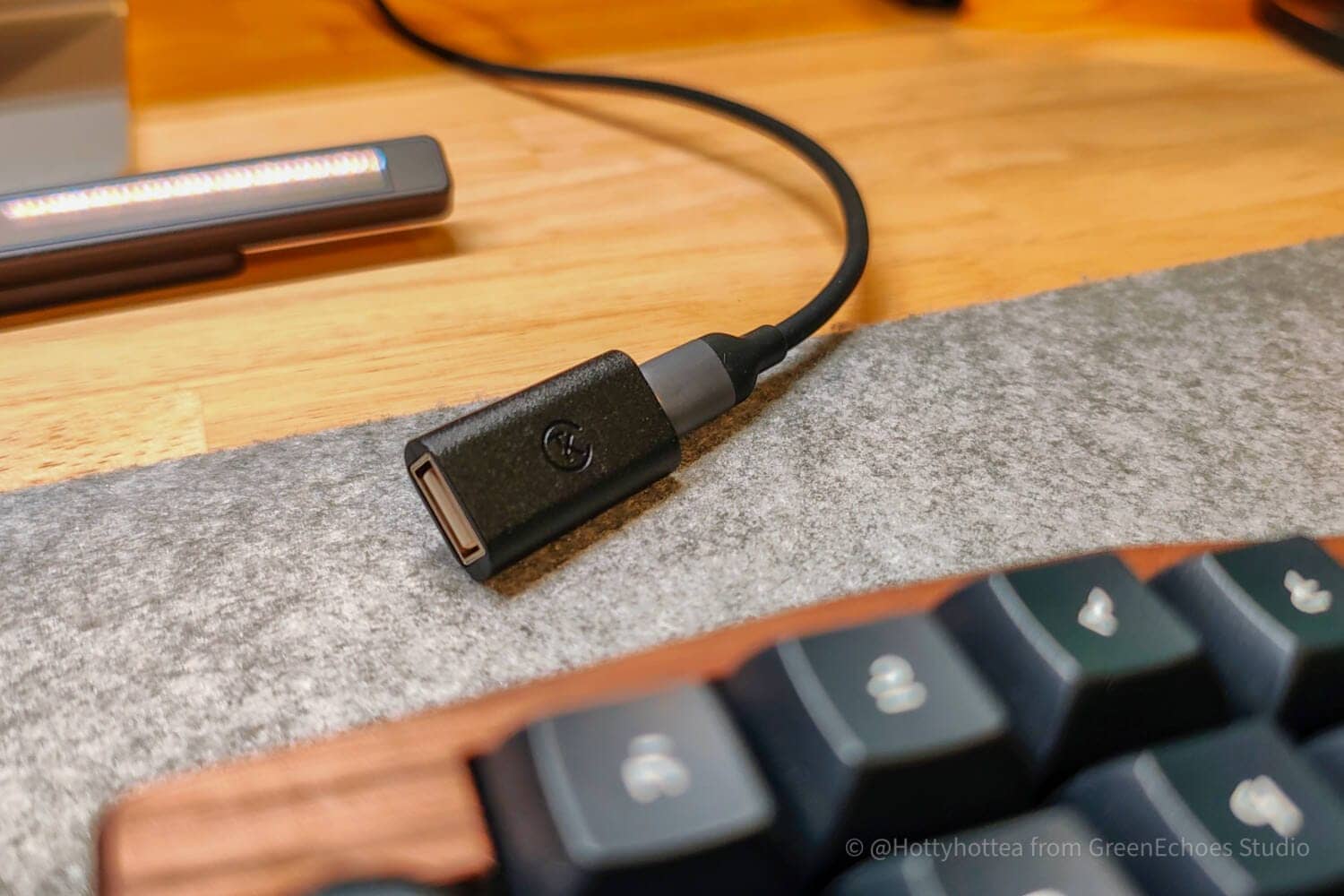
The included USB cable was considerably softer than a typical braided cable and handled well.
Nape Pro size, weight and product details
First, weigh it.
The weight is about 83g.
KawamuraThe main unit is said to be heavier than the one exhibited at CES2026, but my impression is that it is “light”.
Weight has a significant impact on portability, but it is quite a difficult trade-off to make with stability of use.

The weight of the ball is about 10 g, and the body is calculated to be 73 g.

The diameter of the ball is approximately 25 mm.
KawamuraPersonally, I have the impression that this is the maximum size for index finger operation.
For thumb operation, up to about 19 mm may be okay, but in any case, the larger the ball, the easier it is to move the pointer.
There may be a trade-off between ball size and feel for maneuverability.

The most famous replacement balls for 25mm trackballs on the market are from Perix andElecom.
The replacement ball for the Perix on hand weighs 13 grams, which is about 3 grams heavier than the stock Nape Pro ball.

The trackball is removed by inserting a long, thin stick into the hole in the bottom and pushing it up from below.
The diameter of the hole is about 4 mm, which is about the size of a φ3.5 mm audio jack.
KawamuraIncidentally, sticks of this diameter are not common in everyday life.
I put masking tape on the end of a precision screwdriver and pushed it up.
This area is quite distressing.
I wish I had a good stick.

The trackball sensor is a small PAW3222.

The trackball support ball is white in color.
The movement of the trackball itself is quite smooth, and the feel is comparable to that of a trackball mouse of the same mechanism that the author normally uses.
KawamuraThe support sphere may be zirconia based on its appearance and feel, but the material is currently being confirmed.
(If it is an artificial ruby, it is most likely red in color.)

A wheel with a click is provided outside the trackball support space.

Confirm the actual measurement of the size.


Details of each part of the Nape Pro
First, let’s look at coloring.
The color is blackish, but it is not “pitch black” but a bit grayish.
I tried taking pictures with different background colors.


All buttons are located on the top surface, and there are a total of six switches. (Seven if you include the round button under the logo.)

See the video for a feel of the click.
The square in the upper left corner of the top is an LED indicator, which at this time glows green when starting to operate, red when charging, and 8 colors when changing directions.


For other lighting, please refer to the instruction manual.


The M1/M2 button on the front side can be pushed in with a slant toward the front.


On the other hand, for switches 01 through 04, there is a certain amount of play in the pressing direction so that a click is determined not only in the vertical direction, but also when the finger is pressed at an angle.


The Type-C terminal and slide switch are located above the trackball.
The slide switches are, from left to right, 2.4GHz band dongle connection, wired, and BT connection.

Comparison with other trackball keyboards
Since Nape Pro is a product with a size that has never been seen before, many people may find it difficult to get a sense of the actual size of the product.
Here we have photographed the Nape Pro together with typical trackballs and keyboards of various sizes, from large to small and split keyboards.
Let’s start with the trackball.
From left to right: Kensinton SBP (55mm)/Nape Pro (25mm)/Elecom HUGE Plus (52mm).
As for width, it is about one-third the size of the SBP and half the size of the HUGE Plus.

Compared to the Apple Magic Trackpad, it is very compact.
The Nape Pro is also smaller when placed sideways.

Then compare with the keyboard.


Nape Pro, where is the right place to put it?

The uses for Nape Pro are endless.
The main feature of this product is that it can be placed in as many as eight different directions, allowing for a variety of placement options.
Because of the many options available, there are surely many people who are not sure how to use them.
In conclusion, when placed on the front or back side of the keyboard, two-handed operation is basic, and when placed on the left or right side, one-handed operation is basic.
Here we will explore several ways to place them.
The first important aspect of using Nape Pro is its height relationship to the target device.


As described below, Nape Pro has a caveat: “If the height of the front side of the keyboard is less than 20 mm, placing NapePro in front of the keyboard is likely to interfere with the palm of your hand.
Keyboard features to watch out for with Nape Pro
For example, when used with a thin keyboard or a set of split keyboards, there are some positions that are “harder to use” due to the difference in height.
Let’s take the Keychron B1 Pro as an example.
Perhaps this is the case where you want to place it in front of the space bar so as not to disrupt the home position.
However, so-called pantograph-tough thin keyboards such as the Keychron B1 Pro, MX Keys, and Apple Magic Keyboard have a lower overall height than you might think.
KawamuraThe Nape Pro itself is low enough, but the thin keyboard is thinner than one might expect, creating a relative height difference.

Therefore, if you place it in front of the space bar on those thin keyboards, the Nape Pro and your thumb will interfere with each other and you will not be able to press the keyboard properly.
 Kawamura
The area where the space bar can be pressed is much smaller when placed in portrait orientation.
In particular, Japanese keyboards may be difficult to operate because the space bar is shorter than on English keyboards.
In such cases, you would place it next to or on top of the keyboard.


Then, it is compatible with a split keyboard.
Cornix LP has been an explosive hit, and many people may want to use it as a set.
First, it is important to note that the Cornix LP is a “low-profile mechanical keyboard”.
Therefore, if you place it on the front side under normal conditions, the Nape Pro will definitely interfere with the palm of your hand.
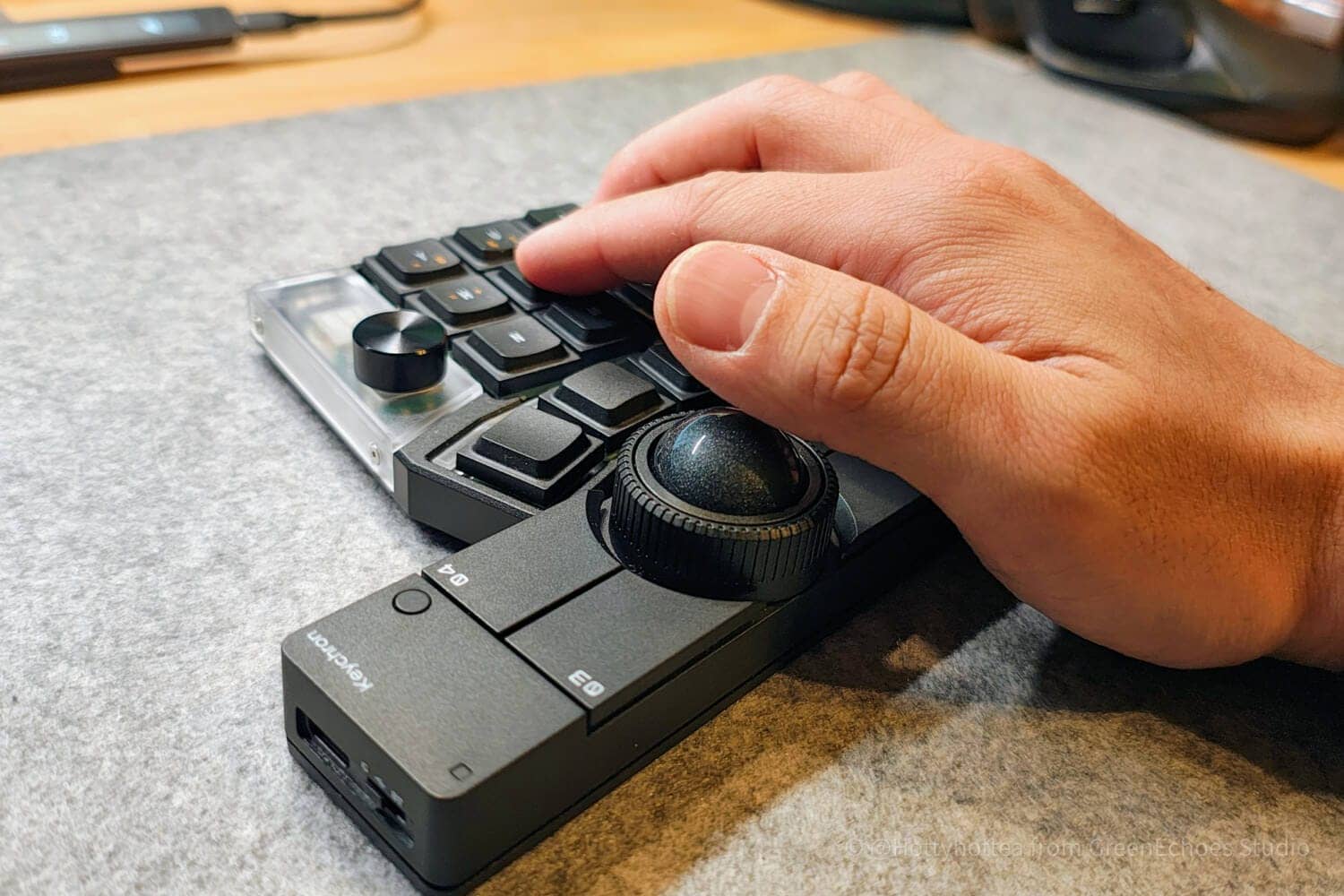
However, this can be resolved by tenting.
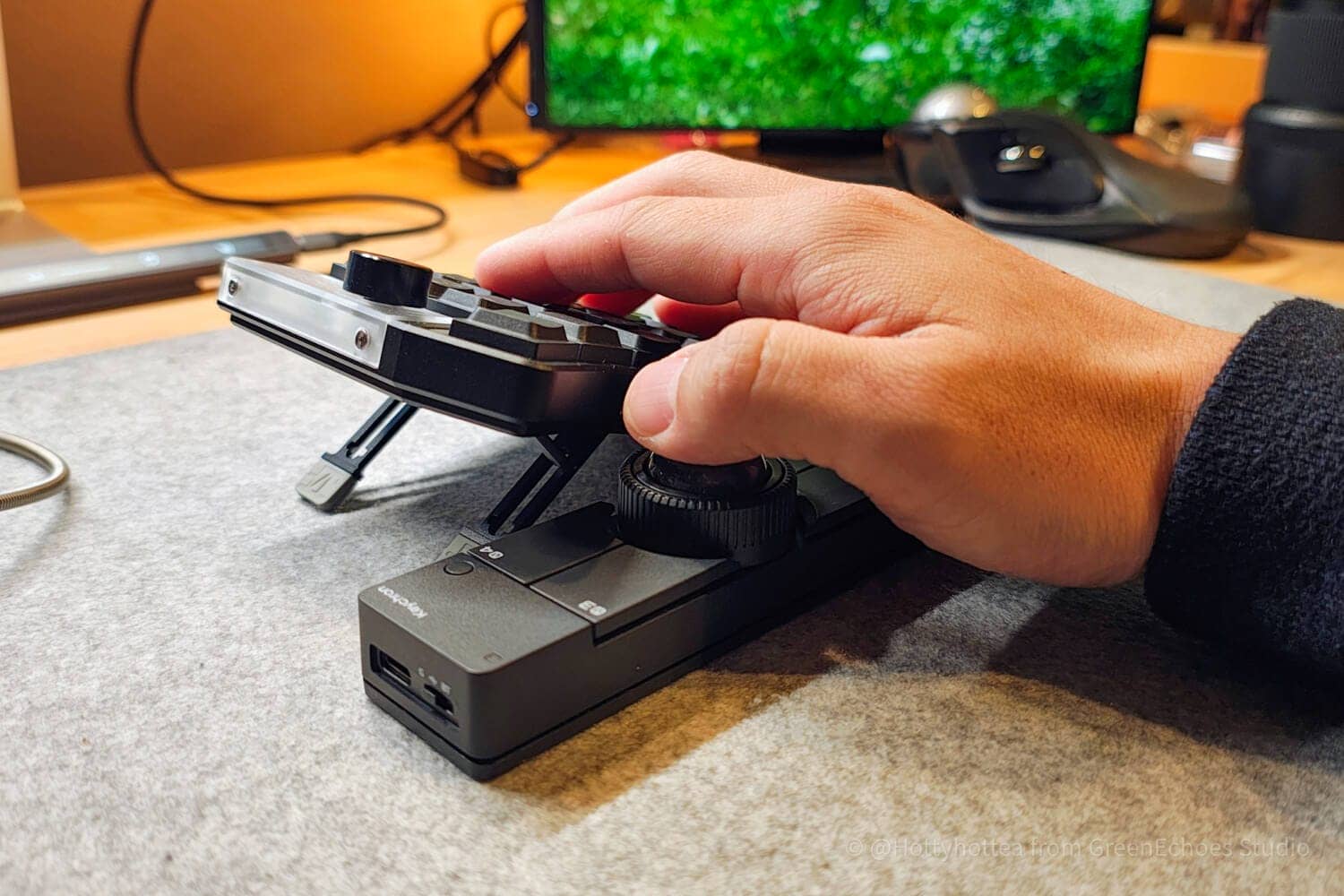
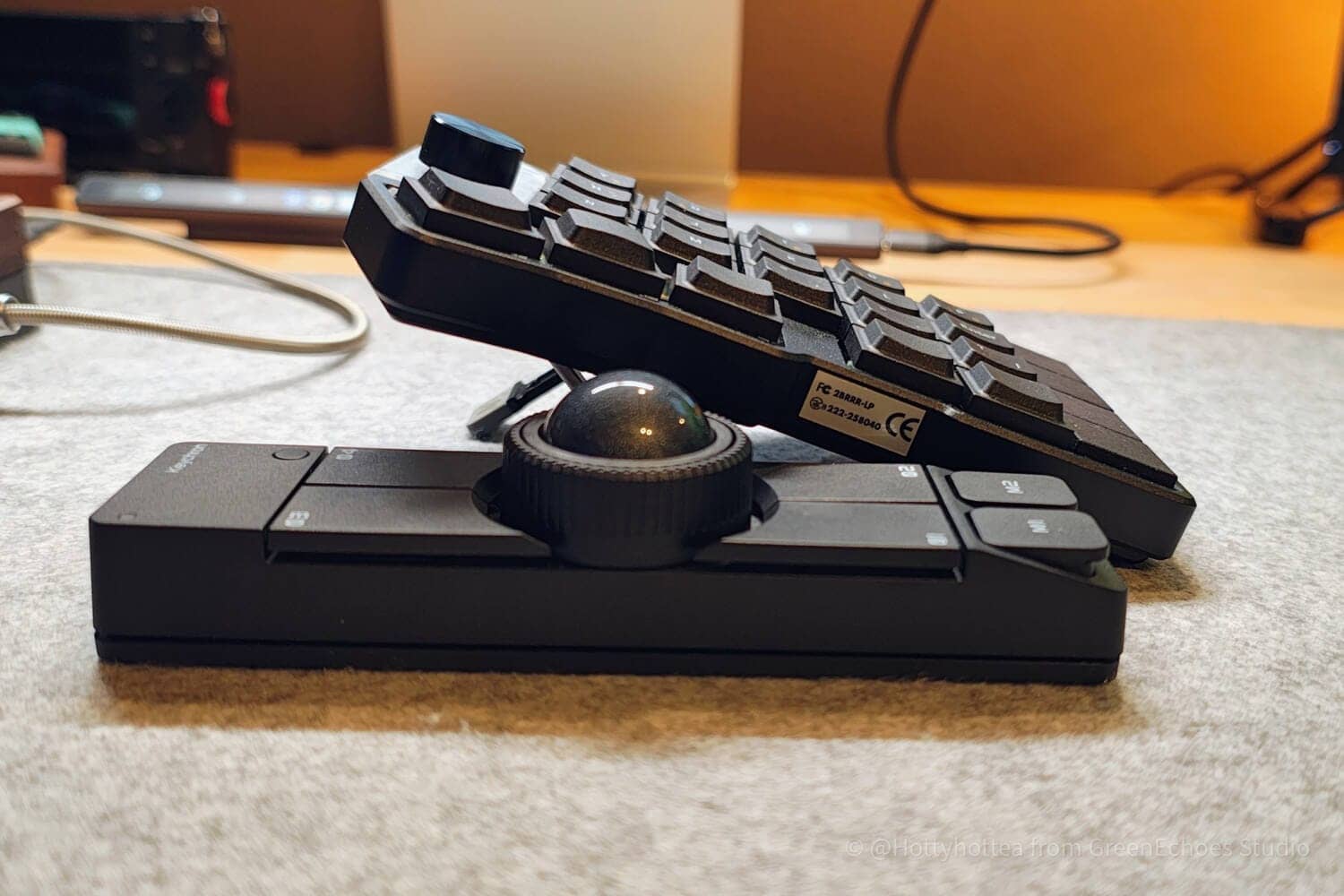
However, in this state, the trackball operation is with the thumb, and if the home position is to be kept, “drag operation” is not possible.
In such a case, some ingenuity is required, such as assigning “click button 1” on the left-hand side keyboard.
However, even with a split keyboard, the risk of interference is low if a normal profile keyboard + palm rest is used.

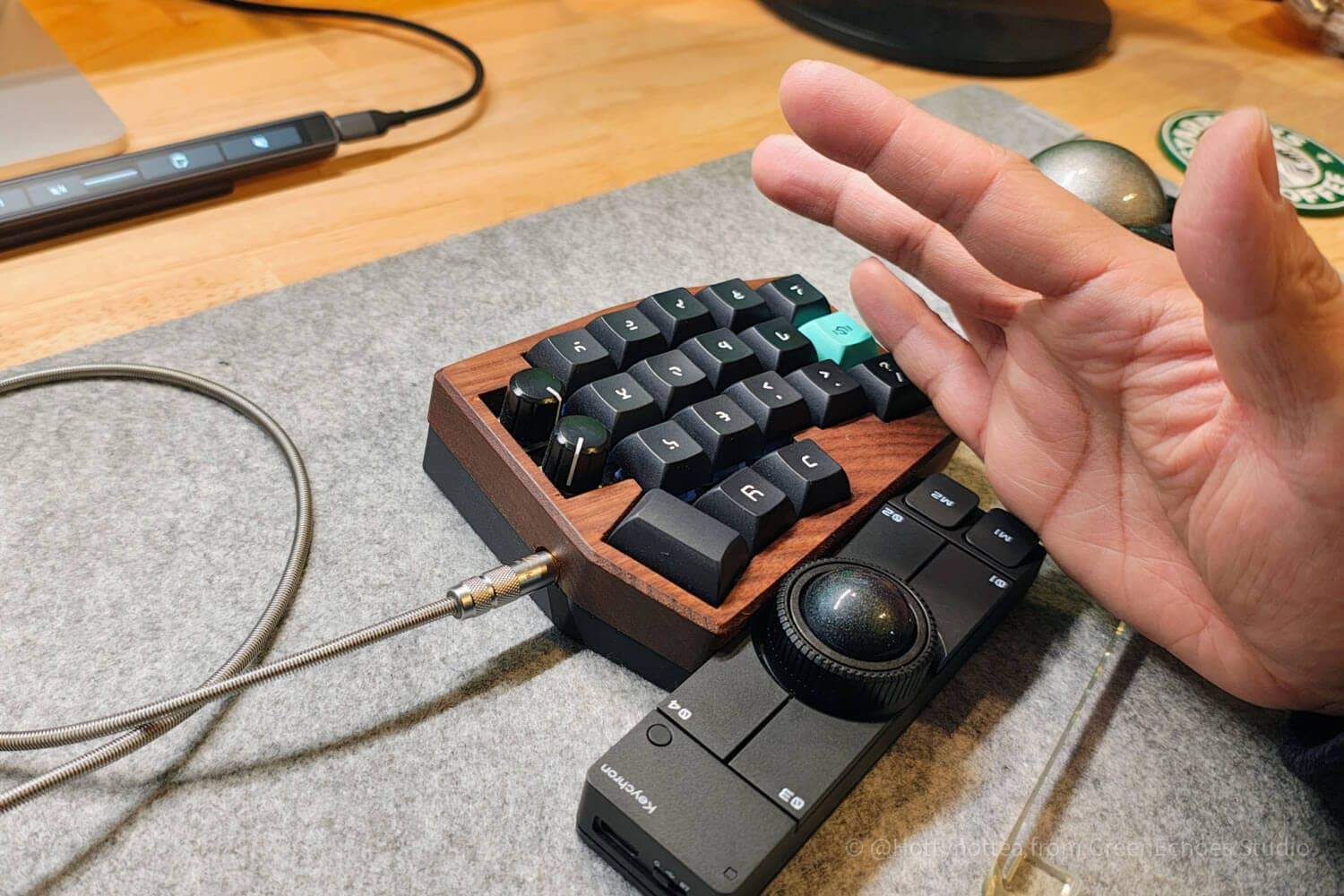
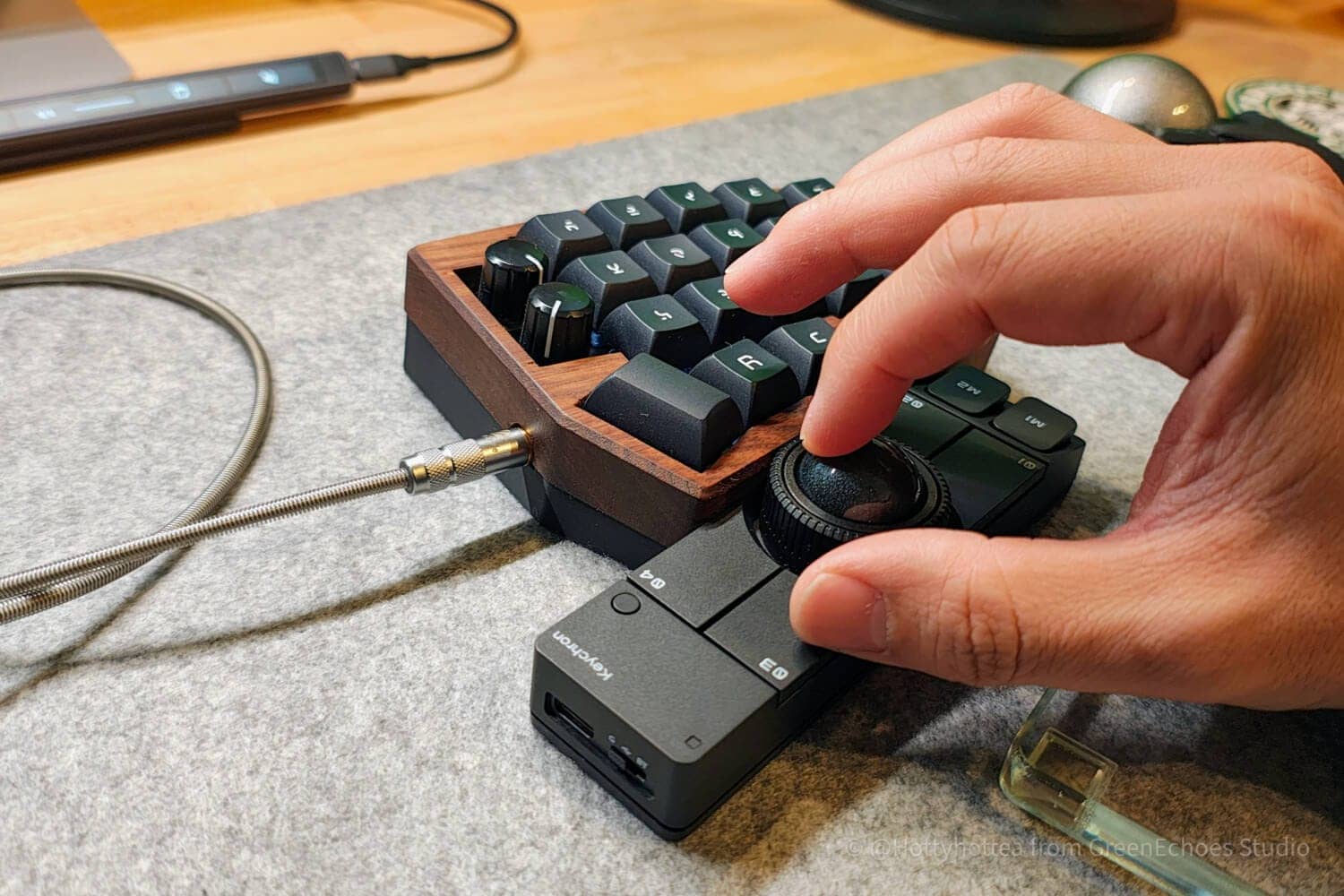
Also, even with a split keyboard, interference problems will not occur if the keyboard is placed in the center, rather than in the so-called “keyball” position.
This is discussed below.


Suggested placement of Nape Pro
Based on the previous notes, let’s simulate the position in which the Nape Pro is placed, assuming a regular mechanical keyboard.
Conclusion|Greenkeys’ recommended position

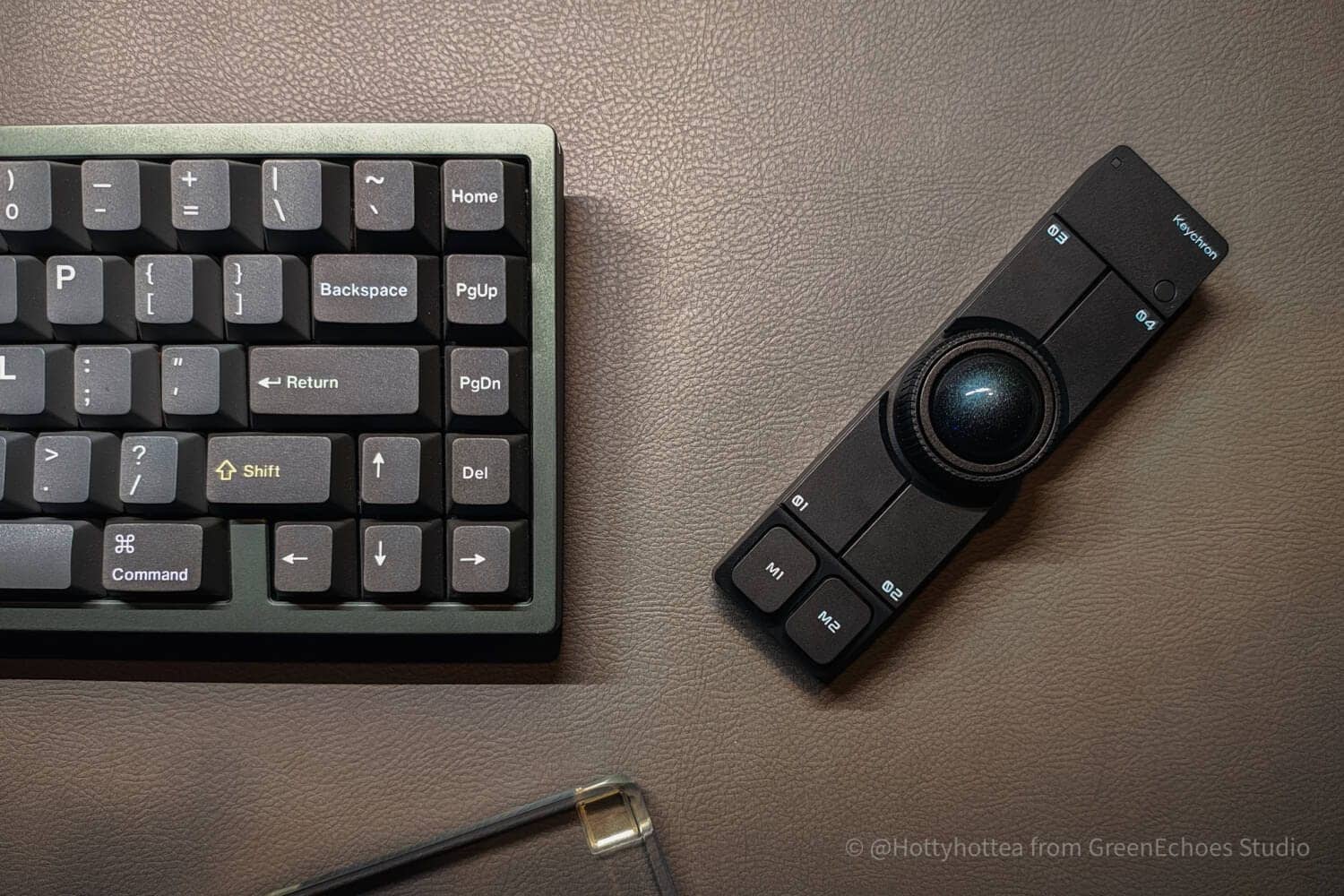

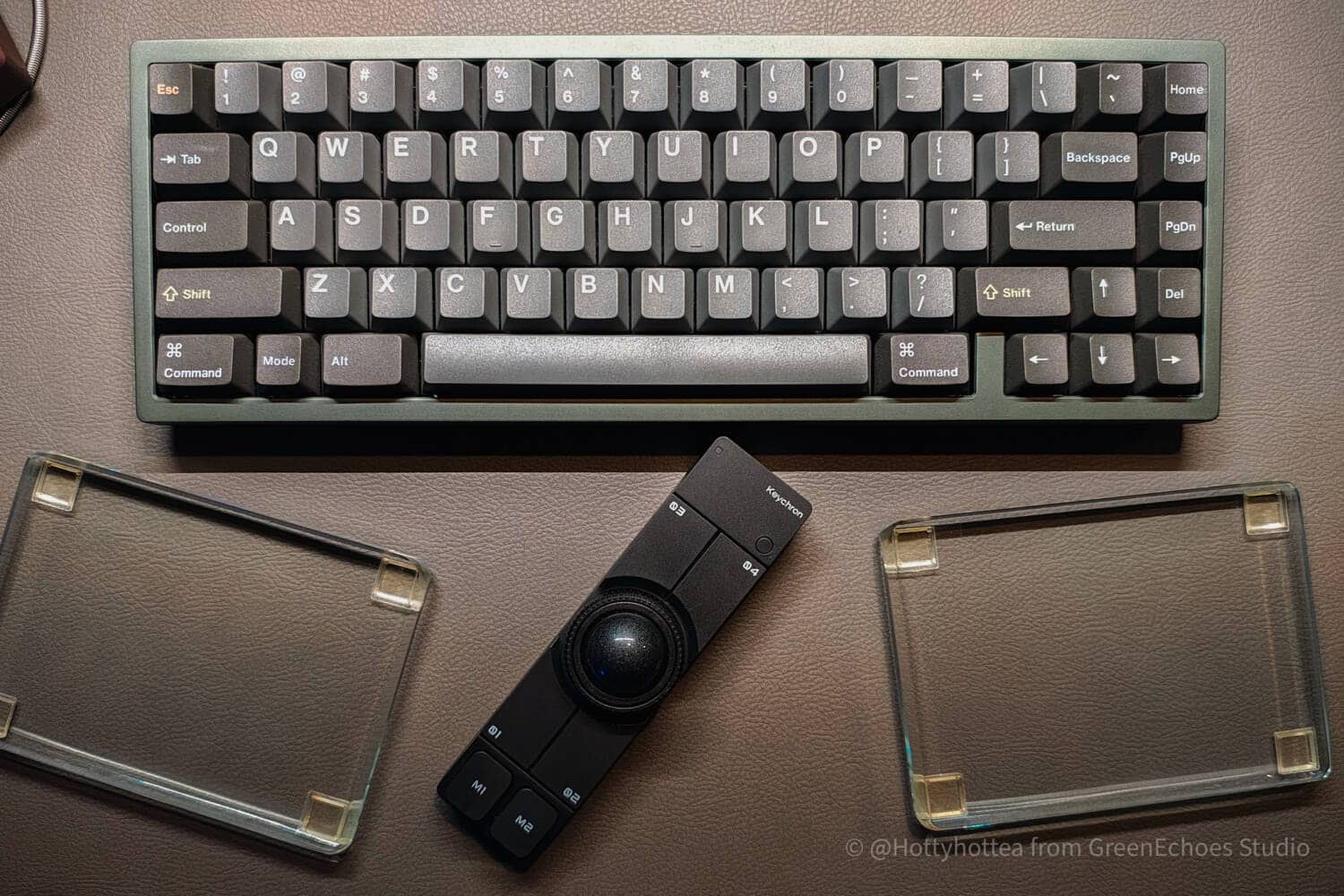

- For horizontal keyboard|Laying horizontally or diagonally
- For the labor side of the keyboard|Vertical placement
- For the top side of the keyboard|Landscape placement
#1:右側もしくは左側
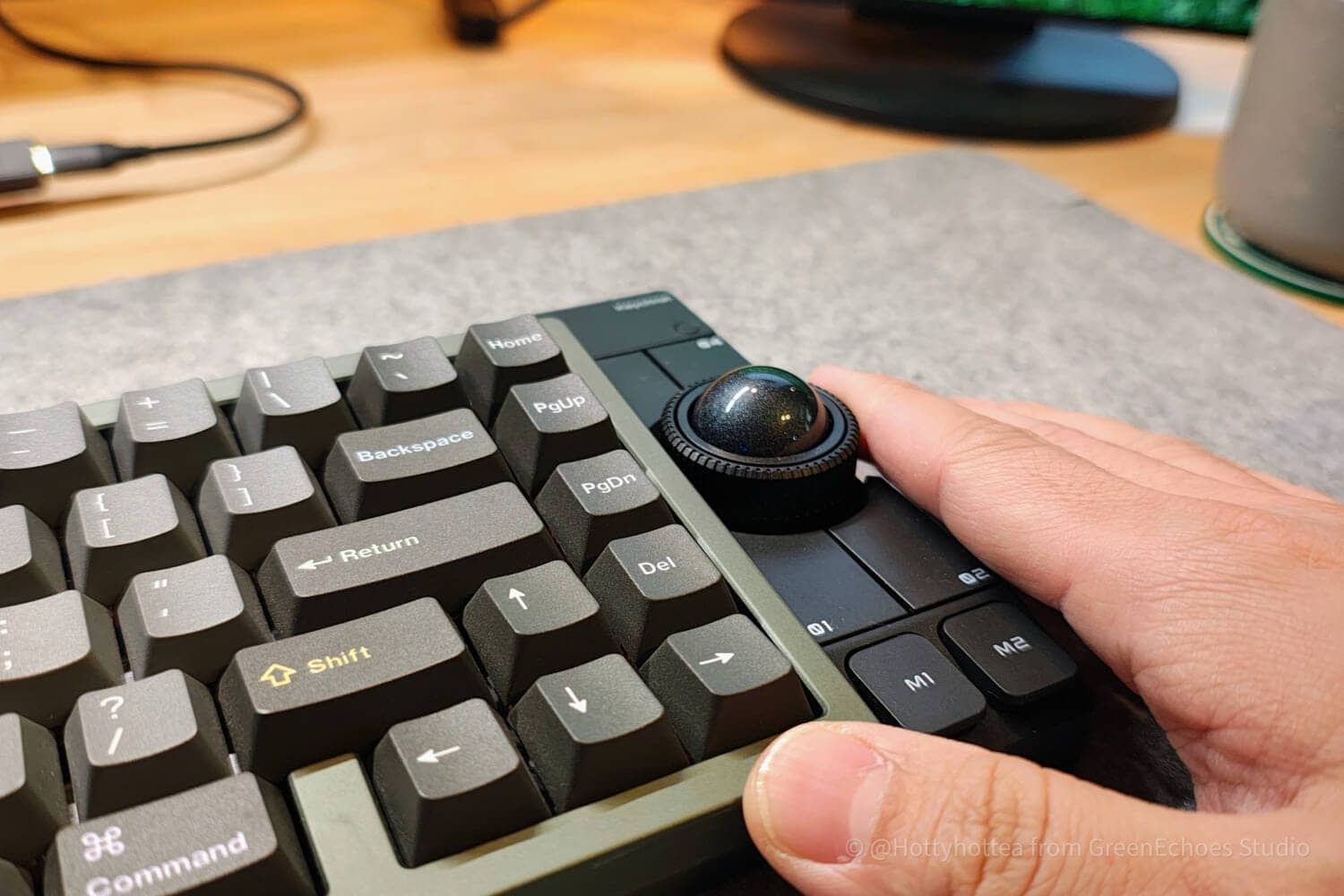
The most orthodox pattern is to place it on both sides of the keyboard, either on the right or left side.
With this, it can be used as a normal trackball, and if placed on the left hand side, it can also be used as a left-handed device that integrates shortcut keys and other functions.


 Kawamura
My personal impression is that I found a good balance between horizontal placement and diagonal placement with the M key in the lower left corner.
All switches are accessible and do not interfere with the palm of the hand, and dragging operations can be performed without problems.
 Kawamura
I tried to see if the scroll ring could be turned with the belly of the index finger by placing it on its side, but I got the impression that it would be difficult with the current torque feel.
#2:手前側
The next pattern is to place it on the front side.
Probably, the usage pattern you are imagining is to place it in the “center of the space bar” as shown below.

However, in this case, the base of the thumb interferes with the Nape Pro switch when held in the home position.

As for Japanese keyboards with a short space bar, it may be even more difficult to press the space bar.
KawamuraThe following positions fit well for me personally.

The same idea as with the Keyball, but with the trackball positioned in the palm of the hand, the Nape Pro could be used on the front side of the keyboard without interfering with the switches or ball.
 Kawamura
In this case, the thumb must operate the trackball and switches.
However, when dragging, it is a little difficult to use the thumb operation, so it seems necessary to pull the right hand toward the front to operate the ball with the index finger and the thumb to operate the switch.
I have the impression that it is more stable to use the keyboard in the front side placement if it is placed vertically rather than horizontally.


Thus, when placing the Nape Pro in a vertical arrangement, it may be more reasonable to move your hands away from the home position and operate it with two hands.
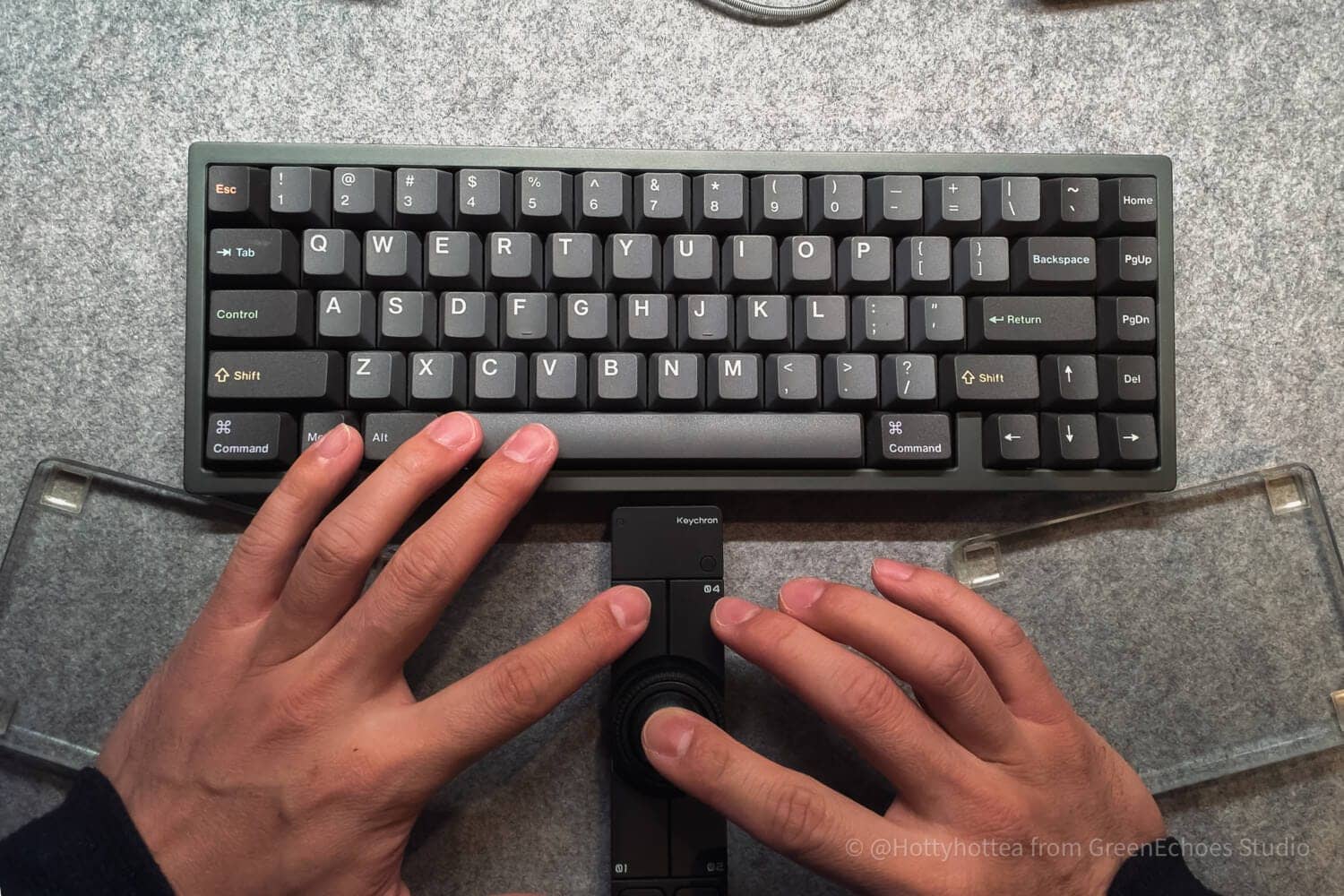
A similar diagonal installation with the M key in the lower left corner is also recommended.
The right index finger or thumb operates the ball, and the left thumb operates the M1/M2/01/02 keys.
KawamuraVertical or diagonal placement is recommended for hand-front placement.
If you can learn two-handed operation of the trackball, the range of what you can do will expand considerably.
#3:上側
Although a bit tricky to place, the upper side of the keyboard can be quite useful depending on the setting.

Naturally, in many cases the keyboard is higher at the back than at the front, so the Nape Pro is hidden and unusable as it is.
Therefore, it must be “elevated” in some way.


However, in this position, two-finger operation with drag may take a little getting used to.
KawamuraIt is like operating the left click key placed on the 03 switch with the index finger while operating the trackball with the middle finger.
Extra: For split keyboards
In the case of a split keyboard, I have the impression that it is more operable if it is placed in the “center” rather than in the so-called “Keyball-like” thumb operation position.
By installing the M key so that it is in the lower left corner, it can be operated in this position.
With this, many operations, including dragging, can be performed only with the right hand, and if “Left Click” is assigned to the left hand side of the keyboard, the left hand may be able to keep the home position.
Author’s current assignment
- M1: ⌘+C
- M2: Left click
- 02: Scroll mode
- 01: Right click
- 04: Return
- 03: ⌘+V
Summary/request for improvement in hardware part
The above hardware review has been conducted at this stage using an actual prototype version of the Nape Pro.
Compared to the product exhibited at CES2026, it has been brushed up in quite a few areas, and it is safe to say that it is already “complete” in terms of hardware.
However, the author was left with some areas of concern, so we have provided feedback on the following.
- I would like the torque of the scroll ring to be a little lighter (to the point where I can turn it without picking it).
- I would like the clicks on the 01 to 04 switches to be a little lighter (currently they feel quite heavy).
The following is shared for reference as there is a matter of preference
- It would be interesting to have high clogs that could be installed at the back side (this could be a third party).
- A little more weight might be more stable (trade-off with portability)
- A kind of “weight clog” dedicated to home use would be stable and usable (image like a deadweight mechanism with a steel plate like MX ERGO).
- It would be nice to have a “stick” like part to remove the trackball.
- It would be more visible if the LED indicator changes color when moving a layer (maybe not necessary since you may not be looking at the hand…?)
As for NapePro, a second round of crowdfunding is currently underway, with a deadline of March 31, 2026.
If you are interested, do not miss this opportunity.
- First written date: 3/1/2026
- Last update: 3/3/2026
- Method of coverage: Report on products provided by the manufacturer
- Reference and citation: https://costory.jp/cf-published-sku-groups/1451501608
- Conflicts of interest: product offerings: yes Monetization links in this paper: yes (not including Nape Pro)
Greenkeys operates solely on performance-based advertising and does not use Google ads because they reduce usability.
Please support us through Buy Me a Coffee if you enjoyed reading the article so that we can continue to operate the media.