


The genre known as “small keyboards” has been drawing attention with the Keychron Orca echo.
Here, we define “small keyboards” as those with fewer than 60%—often considered the lower limit for key count.
Unlike typical keyboards, small keyboards require the concept of “layer thinking”.
In this article, for those getting into small keyboards thanks to models like the Orca echo, we’ll explain how to think about “layer thinking” and propose practical keymaps that make it possible to switch between—or use alongside—a regular keyboard.
このコンテンツはGreenkeys内のミニメディア「type_e」のコンテンツです。
type_eは、あなたの入力体験をアップデートするための学習メディアです。

Keychron Orca echo-related content is here ▷▷

Layer thinking and cockpit thinking

First, we define the input method of a regular keyboard as “cockpit thinking.”
Here, cockpit thinking means being able to press every key you want in a single action.
Today’s popular 75% layouts and 80% TKL layouts originally came from reducing the key count of “100% full-size keyboards” that included extra keys, arrow keys, and a numpad.
Almost all necessary functions are provided as dedicated physical keys.
This is a philosophy similar to an aircraft cockpit.
The strength of this design is how easy it is to understand.
It’s based on the idea that if you want a specific function, you just reach to that spot—an excellent design for reducing mistakes.
This philosophy prioritizes “being able to perform every operation in a single action” above all else.

On the other hand, the “layer thinking” required for small keyboards focuses on “being able to complete operations while keeping your hands in the home position.”
In short, the act of typing is the same, but the approach is different—this isn’t about which is better or worse.
Each has its own pros and cons, and I don’t see them as opposing ideas.
That said, layer thinking clearly comes with a higher learning cost.
And it’s also true that the “right” keymap varies a lot from person to person, which is why it isn’t very mainstream.
| Comparison Item | Cockpit thinking | Layer thinking |
|---|---|---|
| Main target layouts | 100% full-size TKL 75%, etc. | Layouts under 60% |
| Basic idea | Physically place the keys you need Reach for the key you want to press | Give fewer physical keys multiple roles Call up the keys you need via layers |
| What it prioritizes | Ease of understanding Reliability One-action input | Maintaining the home position Less hand movement Optimizing for your own use |
| Advantages | Easy to understand intuitively Many keys can be pressed in one action Low learning cost Helps reduce mistakes | Easier to keep the home position Can reduce hand movement Easier to optimize for your own use Compact and easy to carry |
| demerit | Hands tend to leave the home position Hand movement tends to increase Tends to require more desk space | You need to memorize layer placements Keymap design varies widely by person Typing speed may drop until you get used to it Switching keyboards takes some planning |
| Best suited for | People used to standard keyboards People who often input numbers or use dedicated keys People who want to keep the learning cost low | People who want to optimize their typing setup themselves People who want to reduce hand movement People who enjoy the philosophy behind compact keyboards |
Layer thinking and how it works
To keep your hands in the home position, you need to limit the number of keys to what both hands can cover.
With touch typing, you can see that the coverage range of the pinky and index finger is extremely wide.
In the diagram below, the orange area is the index finger typing area, and the green area is the pinky typing area.
However, for the pinky typing area, the left hand has to cover up to one row beyond the green area, while the right hand has to cover up to three rows beyond it.


From the diagram above, if you narrow the right pinky’s coverage range, you naturally end up with about 40% of the keys compared to a 100% full-size keyboard.
In other words, you could also say that small keyboards are keyboards that reduce the number of keys on the right-pinky side.
The Orca echo is the same in this regard, with nearly the same number of keys on the left and right—49 keys in total.
The question then becomes, “Where did the omitted keys go?”
On a 40% layout, there are no function keys—and not even number keys.
Those missing keys exist on “another level = a layer.”
If a 100% full-size keyboard is a single-story house, a 40% layout keyboard can be compared to a three-story home.

In other words, the visible keys are the first floor, and the invisible “missing keys” actually exist on another floor.
Therefore, while holding down a layer button, you can input keys from a “different layer” that aren’t visible on the main layer.
Benefits of layer thinking

The biggest benefit of layer thinking is that you can type while keeping your hands in the home position.
In other words, you can input text with minimal movement.
Because you can minimize actions like pressing the target key or moving a trackball, it’s appealing in that it can make typing more efficient.
That said, be aware that “efficient” and “fast” don’t necessarily mean the same thing.
This is a kind of “philosophy,” and it’s close to a “typing aesthetic.”
Drawbacks of layer thinking
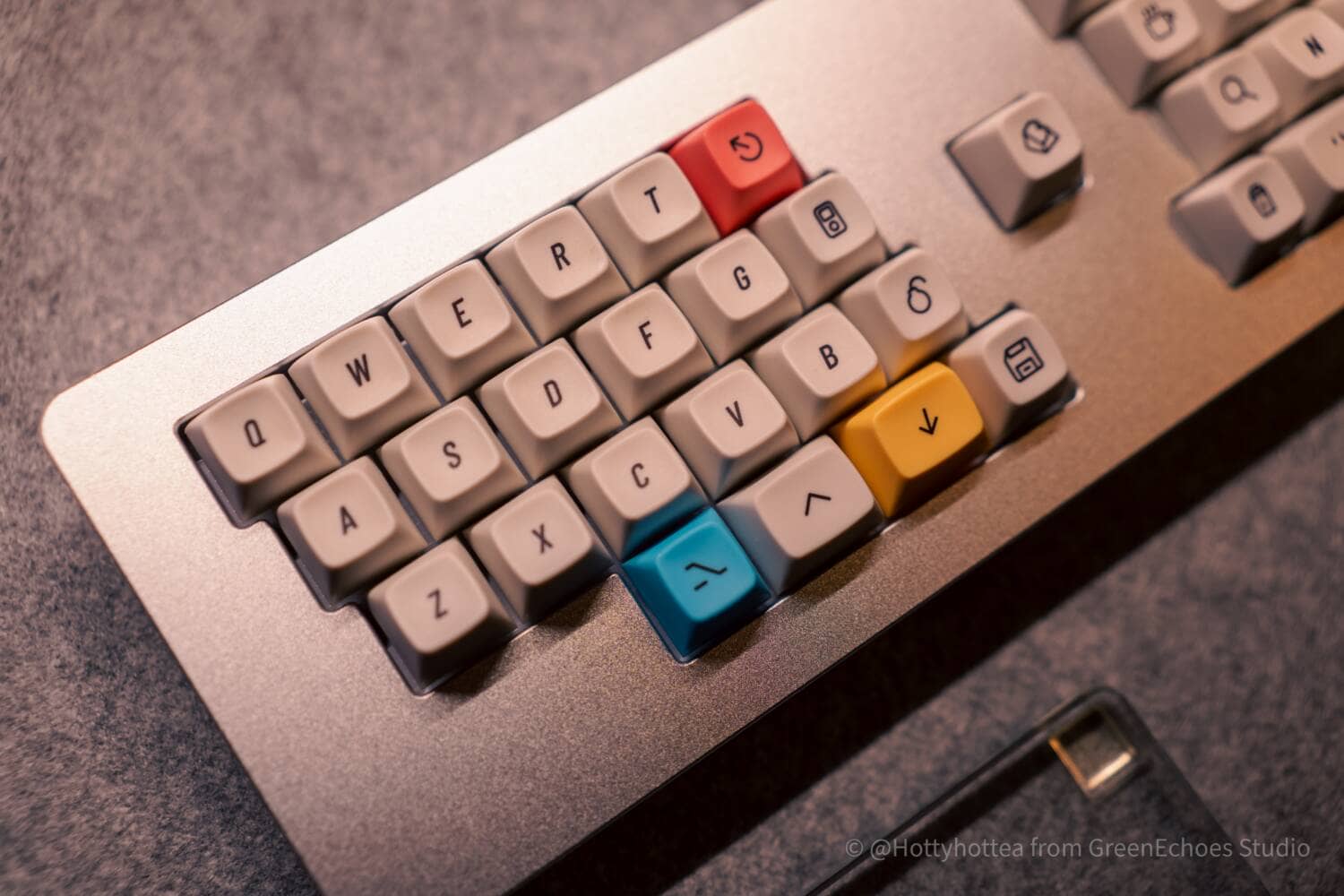
The biggest drawback of layer thinking is the high cognitive cost.
Put simply, it’s hard to memorize the keymap on the other layers.
On top of that, there isn’t a prepared “standard layout” unique to 40% keyboards (like “○○ layout”), so there’s also the cost of designing your own keymap.
It feels closer to “customizing the input experience itself to your own preferences by thinking it through in your head.”
Whether you can see the learning cost as “fun” directly affects whether you can keep using a small keyboard long-term.
So it’s fair to say preferences split quite a bit.
Why I’m drawn to small keyboards

Because I run a keyboard-focused media site, I have opportunities to review many different keyboards.
Most of those reviews are of keyboards with “standard layouts.”
That’s the current majority, and I recognize that cockpit thinking clearly has broader appeal for most people.
Even so, I use a keyboard with only 36 keys for work, and I’m typing this very article on a 36-key keyboard right now.
Having only 36 keys is pretty unconventional even among small keyboards, so it’s not something I can recommend to everyone.
 Kawamura
In that sense, 40% keyboards like the Orca echo are relatively easy to use because they still retain proper pinky keys.
If you remove those pinky keys, it becomes a 30% keyboard.

There are three reasons I’m drawn to small keyboards.
You can feel a typing aesthetic

The first reason is that you can feel a “typing aesthetic” in them.
Compared to typical-sized keyboards, small keyboards have a much stronger design philosophy.
You can even catch glimpses of something philosophical.
They strongly reflect the design philosophy of “how efficiently can you type with finger movement within a small space.”
When you take in that philosophy while looking at the key layout—or when you actually type—the feeling is a kind of satisfaction that’s hard to put into words.
With the Orca echo as well, it’s likely packed with the designer Mr. Nakahashi’s intentions.
Small and cute
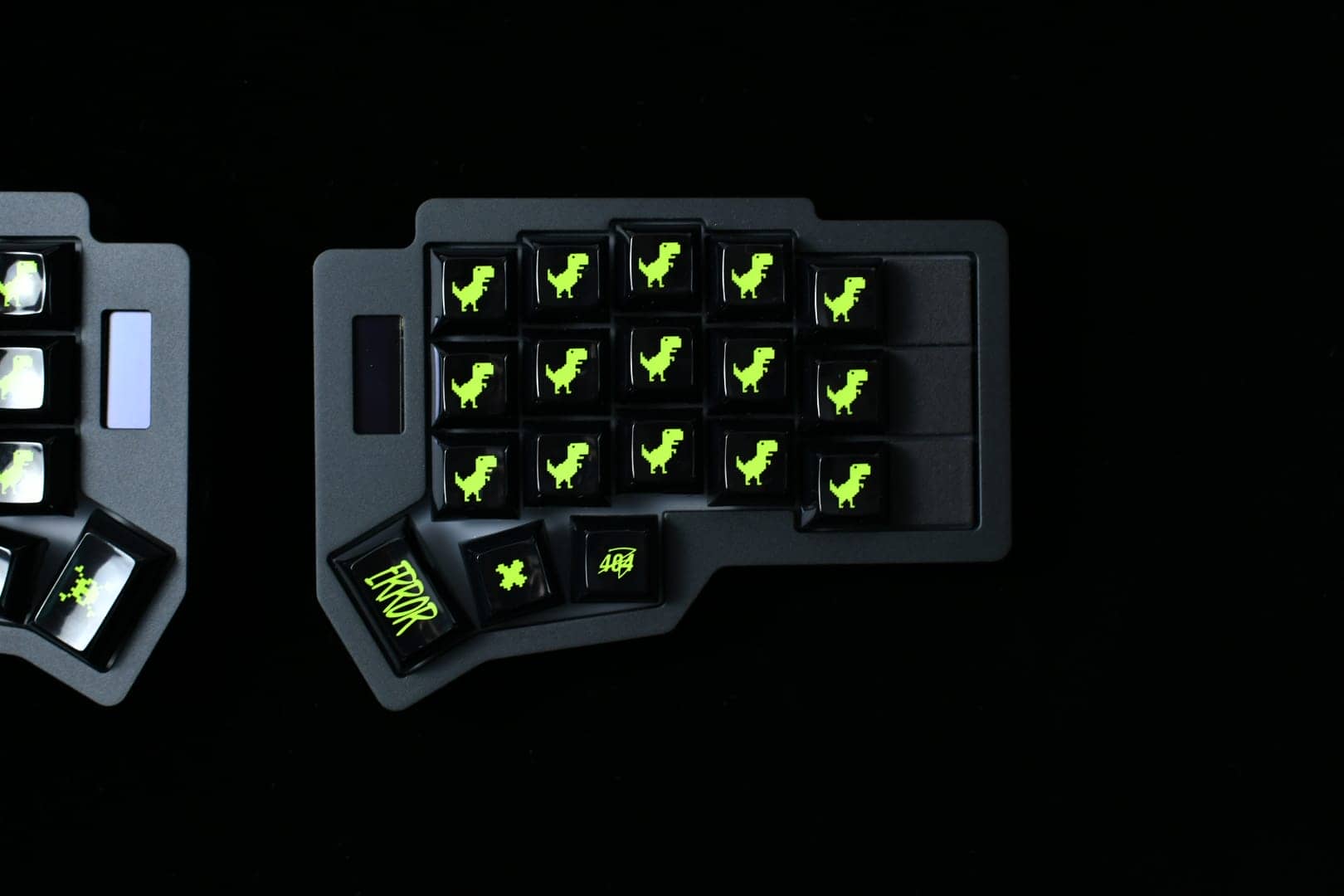
The second reason is that “it looks small and cute on your desk.”
That rounded look really shines in the context of a “desk setup” where you style your desk to your liking.
Just looking at it is mesmerizing, and just owning it satisfies that sense of ownership.
That’s the magic I think small keyboards have.
Excellent portability

The third reason is that “it’s highly portable.”
At this size, it won’t feel like extra baggage even in a bag.
It also saves a lot of space when typing on the go.
I think small keyboards are appealing in these practical ways as well.
How Greenkeys thinks about keymaps for small keyboards
Because I need to review various keyboards, I absolutely have to avoid ending up with a body that can only type on one keyboard.
So the key premise when thinking about keymaps for small keyboards is “basing it on a normal keyboard, while being able to return to a normal keyboard at any time.”
Beyond that, I build keymaps while keeping the following points in mind.
- It should share common assumptions with standard keyboards
- It should follow basic touch-typing rules
- The same keymap should work even when switching keyboards
- Frequently used keys (BS/Enter, etc.) shouldn’t require Layer key operations
- Avoid pressing 2+ keys at the same time on the back layer as much as possible
- Minimal stress around input timing
- Reduce the load on the pinkies and increase thumb usage frequency
- The mouse left-click (MB1) shouldn’t require Layer key operations
- Don’t use AML (Auto Mouse Layer) when operating the trackball
Sharing common assumptions with standard keyboards means using a layout similar to a “normal row-staggered keyboard layout.”
Specifically, I focus on recreating truly standard keyboard conventions like: “1 is above Q,” “the sub-layer of 1 (with Shift held) is [!],” and “F1 is above 1.”
Also, with small keyboards, you’ll run into situations where you can’t type the symbol you want unless you hold a layer key and then press Shift on that layer.
To avoid that, I keep the number of simultaneous keys to two or fewer whenever possible.
However, pressing two keys at the same time with your thumbs is treated as an exception to this rule.
The basic way of thinking about layers is based on the following.
Basic way of thinking about layers

These are the keys on a standard 75% keyboard. When mapped onto the Orca echo, the white keys are on the topmost layer (Layer0), and the red keys can be accessed by pressing the Layer1 button, while the blue keys can be accessed by pressing the Layer2 button.
- White: Layer0
- Red: Layer1
- Blue: Layer2
One thing to note is that this differs from the usual idea of stairs.
In other words, there’s no rule that you must go up layers in order.
The starting point is Layer0. If you hold down the “button to move to Layer1” placed on Layer0, you can press Layer1 keys; likewise, pressing the “button to move to Layer2” placed on Layer0 lets you press Layer2 keys.
Based on this, my everyday keymap is as follows.
Layer0/Layer1 key layout diagram based on the Orca echo
The white keys are Layer0 (the keymap below), and Layer1 is the one with many red keys.
To access Layer1, you press keys while holding the Layer1 key assigned to the left thumb. This is set as an LT key.
Blank keys are unassigned

For the keys placed on Layer1, I’ve arranged them like the number row shifted down by one row.
This makes it easier to recognize number positions with the same feel as a normal keyboard.
For symbols like “!” that normally require holding Shift, I place them with Shift pre-applied, keeping the number of simultaneous keys to two or fewer.
One part that follows a slightly irregular rule is the placement of the “compressed symbol key section” shown in the diagram below.
This is grouped based on my own sense. If there’s one part that’s hardest to memorize, it’s probably here.

Layer0/Layer1 key layout diagram based on the Orca echo
Next is Layer2.
Here, I’ve simply assigned only function keys and arrow keys.
For the arrow keys, I hold the right-thumb key and place the arrows in an inverted T starting from the home-position “J” key, so you can operate them while keeping your hands in the home position.
KawamuraYou also often see people arrange the arrow keys in a straight row.

Notes
My setup is on macOS.
The keymap replaces Command operations with Control operations to match that environment.
Also, some shortcuts like area screenshots (Shift+⌘+4 / on Windows: Shift+Win+s) are omitted in places.
In practice, that shortcut is assigned to the Z-key position on Layer1.
Also, this is only to introduce a way of thinking—it’s not meant to force a specific keymap layout.
I’d be happy if you use it as one example for reference.
Summary: Small keyboards aren’t tools for “reducing keys,” but for “calling up keys”
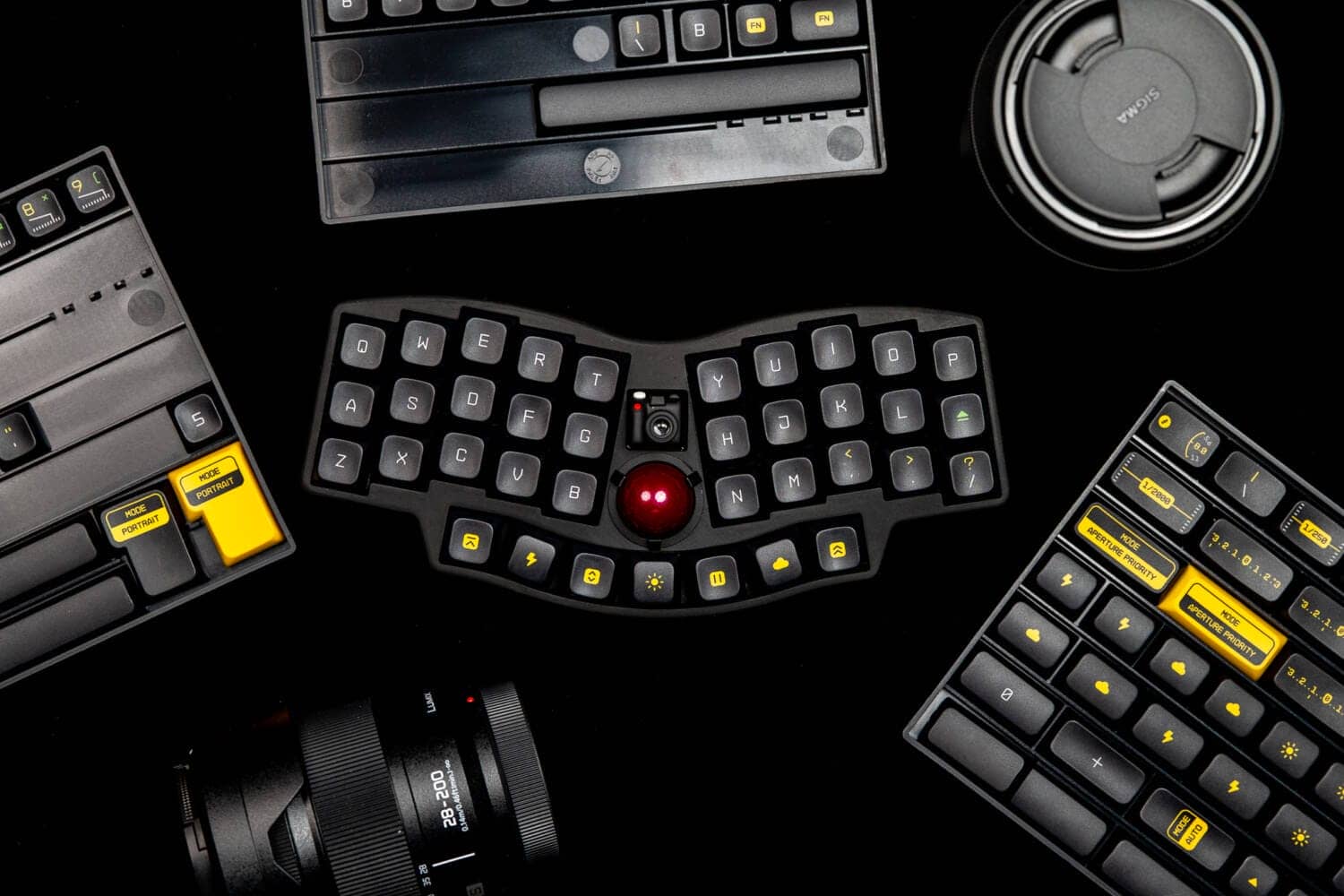
That’s it—this article introduced the “layer thinking” that’s important for using small keyboards, and Greenkeys’ approach to practical keymaps.
40%-class keyboards like the Orca echo aren’t simply regular keyboards made smaller.
They’re keyboards that require “layer thinking”—calling up the keys you need to your fingertips using layers—rather than “cockpit thinking,” where you physically line up the keys you need.
So it’s completely natural to feel at first that “there are too few keys” or “layers are hard to remember.”
Layer thinking has a clear learning cost, and there will be times when your typing speed drops until you get used to it.
Most likely, you won’t be able to use it for work at all in the beginning.
On the other hand, once you get used to it, you’ll be able to handle numbers, symbols, arrow keys, and more while keeping your hands in the home position—and you’ll start to see the unique appeal of reduced hand movement.
Small keyboards aren’t tools that will fit everyone unconditionally.
But for people who can enjoy the process of growing a keymap to fit their hands, they become a very deep input environment.
If you’ve picked up an Orca echo, I hope you’ll enjoy the world of small keyboards—including the initial confusion—not as “reducing keys,” but as “rebuilding the typing experience.”
Keychron Orca echo-related content is here ▷▷
- First published: July 3, 2026
- Last updated: July 3, 2026
- Reporting method: None
- References / sources: ELECOM, etc.
- Conflicts of Interest: Product Offering: None Monetization Link in this paper: None


Google検索の「優先ソース」にGreenkeysを追加します
Add Greenkeys as a Preferred Source on Google